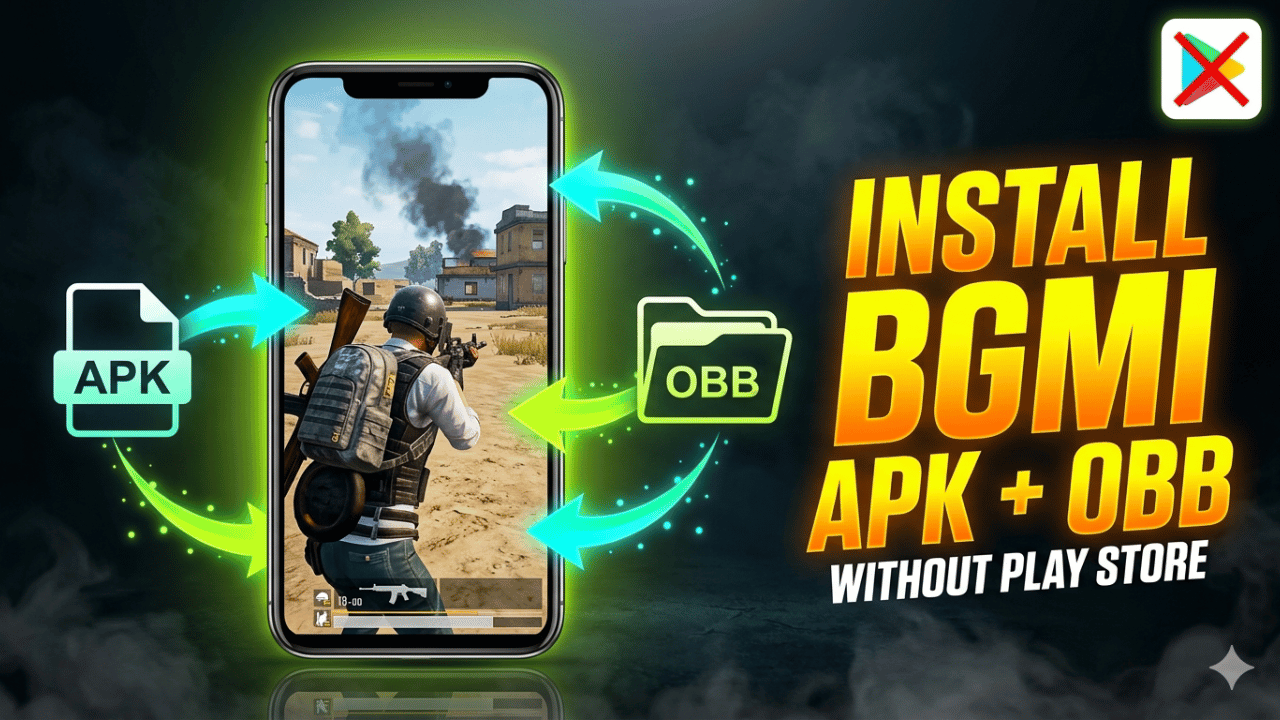
If you want to play BGMI but the game is not showing up on the Play Store, or maybe the update is not available yet in your region — do not worry. You can easily install BGMI manually using the APK + OBB method without touching the Play Store at all.
A lot of players use this method and it works perfectly fine. All you need is the right files and a few minutes of your time. Let us walk through everything step by step.
Why Install BGMI Without the Play Store?
There are a few very common reasons why players choose the manual installation method:
- The Play Store update is delayed in your region
- You want to install a specific version of the game
- BGMI is not showing up in your Play Store search
- You just got a new phone and want to install it quickly without waiting
- The Play Store download keeps failing or getting stuck
Whatever the reason, the APK + OBB method is completely safe as long as you download from trusted and official sources.
What You Will Need Before Starting
Before you begin, make sure you have these things ready:
- An Android phone running Android 5.1.1 or above
- At least 4–5 GB of free storage space
- A stable Wi-Fi connection for downloading large files
- The BGMI APK file (approx. 80–100 MB)
- The BGMI OBB file (approx. 1.5–2 GB)
- A File Manager app (most phones have one built-in)
If your phone does not have a file manager, you can download Files by Google from the Play Store — it is free and works great.
Step-by-Step Guide to Install BGMI APK + OBB Without Play Store
Follow these steps one by one and you will have BGMI installed in no time.
Step 1 — Download the APK and OBB Files
First, download both files from a trusted source. The safest place is always the official BGMI website at battlegroundsmobileindia.com. You can also use well-known trusted APK websites.
- Download the BGMI APK file and save it in your Downloads folder
- Download the BGMI OBB file and save it in the same place
Make sure both downloads are complete before moving to the next step. Do not extract or open the OBB file — just leave it as it is.
Step 2 — Allow Installation from Unknown Sources
Since you are not installing from the Play Store, your phone needs permission to install apps from outside. Here is how to enable it:
For Android 8.0 and above:
- Go to Settings
- Tap Apps or App Management
- Find your File Manager or Browser app
- Tap on it and enable Install Unknown Apps
For Android 7.0 and below:
- Go to Settings
- Tap Security
- Turn on Unknown Sources
This step is necessary. Without this permission, the installation will be blocked.
Step 3 — Install the BGMI APK File
Now it is time to install the APK.
- Open your File Manager
- Go to the Downloads folder
- Find the BGMI APK file
- Tap on it and hit Install
- Wait for the installation to complete
Once it is done, you will see a success message. But do not open the game yet. There is still one very important step left.
Step 4 — Place the OBB File in the Correct Folder
This is the most critical step of the whole process. If the OBB file is not placed correctly, BGMI will either crash or show a “resources not found” error when you try to open it.
Here is exactly what to do:
- Open your File Manager
- Navigate to Internal Storage → Android → obb
- Look for a folder named com.pubg.imobile
- If this folder does not exist, create it yourself with the exact same name — no spaces, no capital letters
- Now go back to your Downloads folder, copy the OBB file
- Come back to the com.pubg.imobile folder and paste it here
Double check that the OBB file is inside that folder and not somewhere else. This one step makes all the difference.
Step 5 — Launch BGMI and Verify Files
Now open BGMI from your home screen or app drawer.
The game will automatically start verifying the files. This usually takes 1–2 minutes. After verification, it may ask you to download a small in-game resource pack — just allow it and wait.
Once everything is loaded, log in with your existing account and jump straight into the battleground. That is it — you are all set!
Common Problems and Easy Fixes
Things do not always go perfectly the first time. Here are the most common issues and how to solve them quickly.
“Resources could not be found” error The OBB file is either missing or placed in the wrong folder. Go back to Step 4 and make sure the file is inside Android → obb → com.pubg.imobile.
“App not installed” error An older version of BGMI might already be on your phone. Uninstall it first, then try installing the new APK again. Your game progress will be safe since it is saved on the server.
Game crashes right after opening This usually happens when the APK and OBB files are from different versions. Make sure both files are from the same update version.
Installation gets blocked automatically Unknown Sources permission is not enabled. Go back to Step 2 and turn it on for your file manager or browser app.
Download is incomplete or corrupted Delete the files and re-download them. Always use a stable Wi-Fi connection for large downloads like the OBB file.
Important Safety Tips
A few things every BGMI player should keep in mind before installing manually:
- Never download modded or hacked APK files. These can permanently ban your account and may also harm your device.
- Always use official or highly trusted sources for downloading APK and OBB files.
- Do not install random “speed hack” or “aimbot” versions. They are fake and dangerous.
- After installing manually, go to the Play Store and enable auto-updates so future updates happen automatically.
- Keep your phone’s storage clean — BGMI runs better when there is free space available.
Frequently Asked Questions
Is it safe to install BGMI without the Play Store? Yes, it is completely safe as long as you download the files from official or trusted sources only.
Will I lose my game progress if I install manually? No. Your BGMI progress is saved on Krafton’s servers. You will not lose anything.
Can I install BGMI OBB on an SD card instead? It is not recommended. Always place the OBB file in the internal storage path for the best results.
Do I need to repeat this process for every update? Once BGMI is installed, future updates will come through the Play Store automatically. You only need to do this manual process once.
Final Words
Installing BGMI APK + OBB without the Play Store is actually very simple once you know the steps. The key is to download both files from a safe source, place the OBB file in exactly the right folder, and let the game verify everything on its own.
Follow these steps, avoid any modded files, and you will be dropping into Erangel before you know it. Now go get that Chicken Dinner!